Profiles
A profile is a per-client, per-language-pair rule set: severities, protected terms, glossary, client checklist and AI guidance. Profiles are grouped by account, and org, account and division tiers cascade into them, so a term taught once applies to everything below it. The same profile is honoured by the app, the Dropbox folders, QA by email, the extension, the MCP server and the API alike.
The seven sections
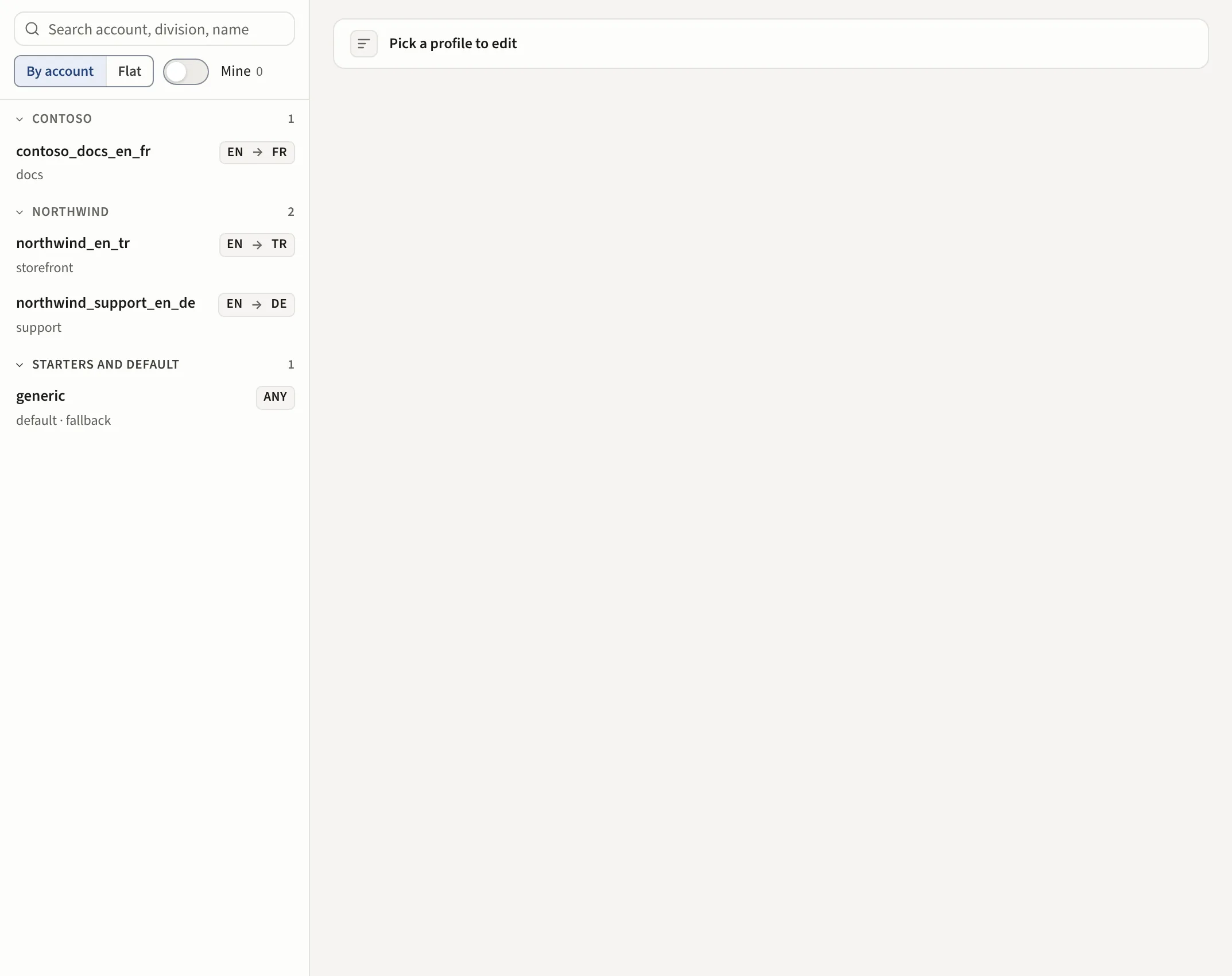
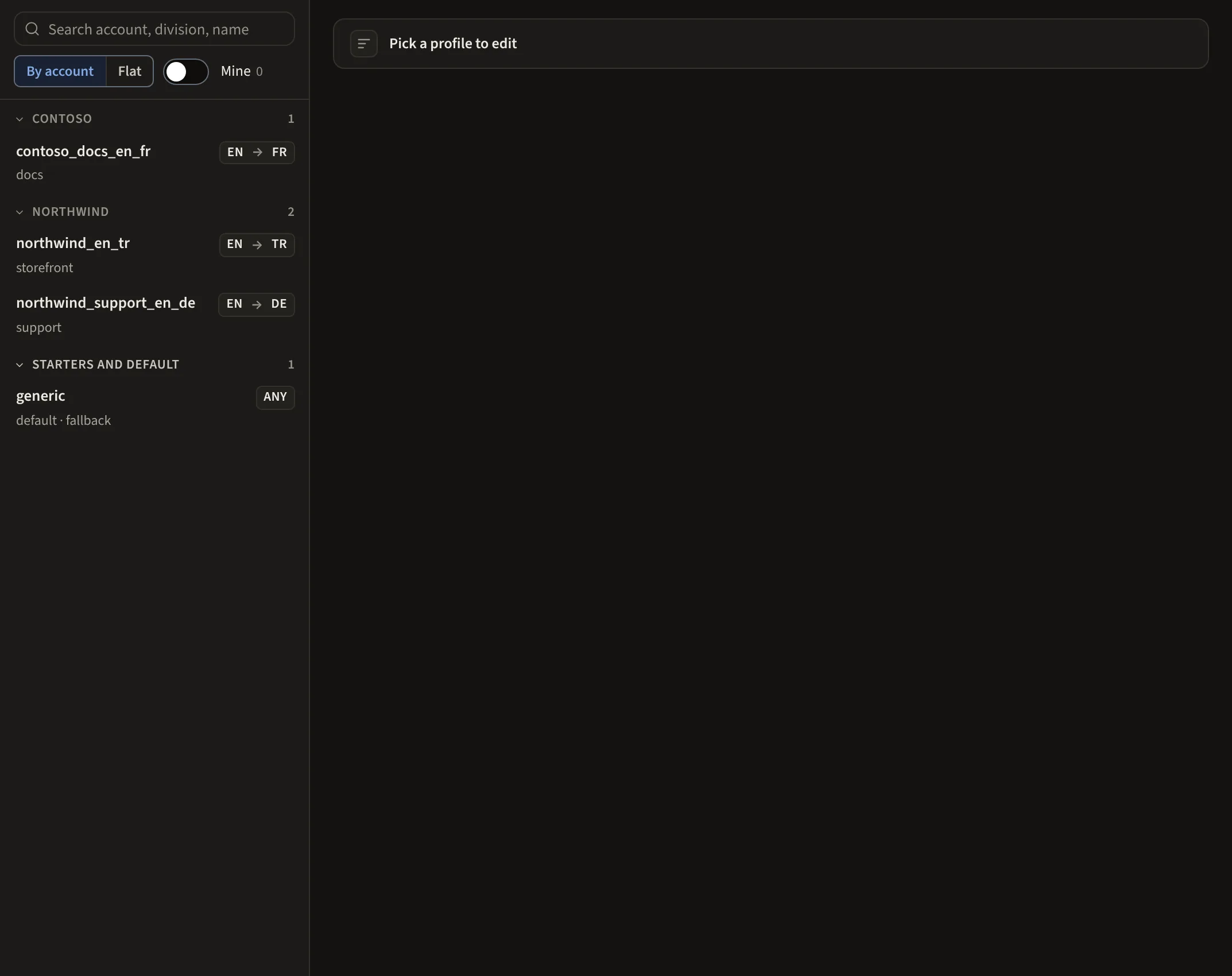
The list sits on the left: search, By account or Flat, the Mine switch, your Drafts on top, then My profiles, the account groups and Inactive. The open profile reads in one line: its name (click it to rename), then the account, division and language pair. Save profile shows in that line only while something is unsaved, next to the section it is in. The ... menu holds Copy, Share with workspace, Make inactive or Reactivate and Delete (or Reset to defaults for a shipped profile).
Seven tabs, each with a short count. A tab with unsaved changes shows an amber dot; Learn shows a dot while suggestions wait. This article explains each section; an i beside a field explains the few whose effect the label does not say (Owner, Pass mark and Inherit from). The rarely used controls sit under Advanced at the bottom of a section.
| Section | What it holds |
|---|---|
| Basics | The account, division, language pair and pass mark. The owner. |
| Checks | The Spelling switch, Which findings count and the Severities that raise or lower any individual check. A check that takes settings of its own, such as Link country code with its country code and hosts, shows them under its row while it is not off. Each row says where its value comes from and, for a value from the base profile, why the base sets it. |
| Terms | The Glossary (terms that must be used), Brands and terms to keep (terms that must survive untranslated) and the Fine as is list. Glossary and brands to keep. |
| Rules | Your own rules and the imported checklists, one list. Checklists and custom rules. |
| Where files come from | Which Dropbox folders this profile claims and its QA by email address. Ways to run a check. |
| AI review | The profile's own AI review switch, its choice on the AI check of rule findings and the second opinion (Inherit, On or Off), the Review quality choice and the AI guidance the AI reads with every segment. The AI review, Style guides and AI guidance. |
| Learn | The suggestions waiting for approval. Learn. |
Routing
Routing under Basics says which files belong to the profile: usually a word in the filename, or the client's account. This is how Auto-detect finds it. A job that names a profile explicitly, through the API or the MCP server, gets that profile.
Owner and inactive profiles
Each profile can name an owner: any member of the workspace, in any role. The owner may do everything a PM can to that one profile (save it, rename it, make it inactive, run Learn, upload a style guide, manage its term lists, add a term by hand, write a rule in the form or describe one in plain words), while teaching a term to the whole account and the routing tables stay with PMs. An admin or quality lead assigns the owner at the top of Basics. The rail opens with a pinned My profiles group and a switch that narrows it to those.
A profile nobody runs any more can be made inactive instead of deleted: it keeps every term, rule and Learn record, moves to a collapsed group at the bottom of the rail and is no longer matched automatically. Reactivate undoes it.
The tiers
The shared org, account and division tiers have terms, rules and Learn queues of their own. A term approved at the account tier applies to every language pair under it, so a brand does not have to be approved once per profile. Account and division rules show in a profile's list too; there you can only switch them off for that profile.
Build one from a folder
Build from a folder takes one client's folder (or a zip of it, or a Dropbox folder) and proposes the profile for you to approve. Build a profile from a folder.