Learn
Learn is how the tool stops repeating a finding that is not a mistake for your client, and starts catching the ones your reviewers care about. Reviewer feedback becomes suggestions on a profile; a human approves them one by one. Nothing you have not approved ever changes a check. Learn comes with Business; what a workspace learned before keeps working on any plan.
Read the transcript
- Learn. Suggestions from your reviewers’ work.
- 1. Open the profile’s Learn section. Each suggestion says where it came from.
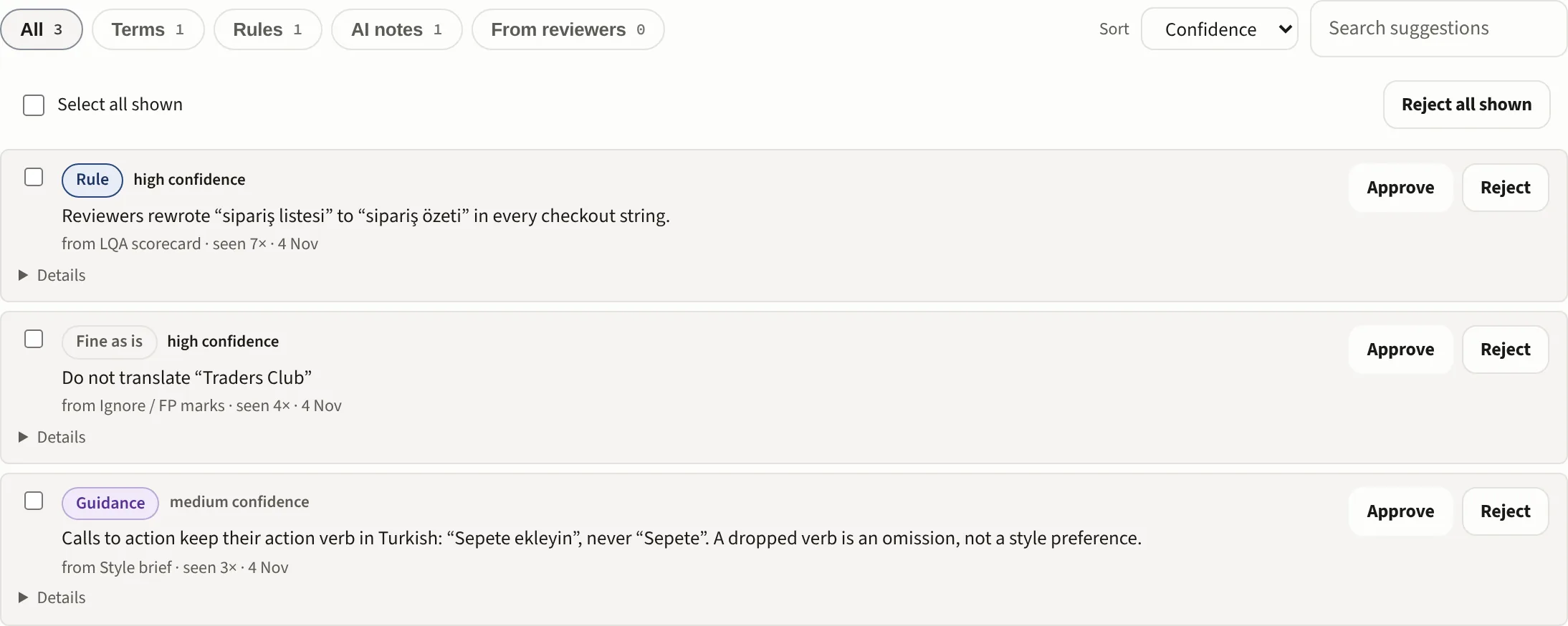
- 2. Press Approve. Here Traders Club is kept as written from now on.
- Approved suggestions go live. Unapprove takes one back.
- 3. Or select several and approve them together. Nothing changes until a person approves it.
- Next: Build a profile from a folder.
Where suggestions come from
Five sources, all feeding the same queue.
- LQA scorecards: the corrections a reviewer made become terminology rules and notes.
- Ignore marks in past Xbench or LTB QA reports become do-not-translate terms and exceptions. A spelling mark on a single word becomes a known word suggestion. When a report marks one format check (double spaces, punctuation, capitals) ten times or more it becomes a suggestion to make that check Minor for this client. Number and tag marks are never used.
- Style guides and briefs (
.docx,.doc,.pdf) become guidance notes from their DO and DON'T sections. - The finding itself: on an untranslated-looking segment a report offers Keep as brand and Fine as is, which file a suggestion without leaving the report. The report answers "Sent to Learn for approval", or says so if Learn already approved or rejected that term.
- Reviewer decisions: Ignore marks the finding in one report. If two reviewers ignore the same thing, or it is ignored in two files, Learn suggests stopping it for this client. Learn reads the decisions every night; Scan decisions now reads them at once. The row says how many decisions it rests on, who made them and in which files.
Add sources at the top of the section opens the ways in: Upload files (many at once is better), Scan this profile's Dropbox folders (everything, QA reports only or LQA scorecards only; it runs when you press it, and a re-scan only reads files new since the last one) and Scan decisions now. A QA report is recognised by its rows, so it does not need "Xbench" or "QA report" in its name. Run a check refuses a file whose rows read as a QA report and points here instead. The LQA findings a scorecard adds are kept, and they can also draft AI review lines: Draft lines from the LQA history in AI guidance.
What a suggestion is
Three kinds. A rule is a terminology correction ("prefer sipariş özeti over sipariş listesi"). A do-not-translate term is a brand, product or programme name that must survive in the target. A guidance note is a sentence of reviewer instruction. Every row says which source it came from, how many times it was seen and when it was last seen. Details opens the before-and-after examples, the category, the reasoning and the report behind it. A suggestion you cannot justify is one you should reject.
Placeholder text (lorem ipsum, dummy, test, sample, N/A) never becomes a suggestion, nor does anything that comes only from the sample file or the demo workspace.
How the queue is ordered
By how often, how confidently and how recently something was seen. Recurrence is damped, so the fiftieth sighting does not outweigh everything else, and recency fades over months: a correction seen seven times last week outranks one seen twice last year. The list sorts by Confidence, Most seen or Newest; the filter chips (All, Terms, Rules, AI notes, From reviewers) and the search box narrow it. The first 50 rows show with Show more under them. The point of the ranking is that the top of the list is the part worth your minute.
Approving, rejecting, undoing
Approve or Reject on each row. After an approve the row says where it went, for example Added to Glossary, Added as a guidance line or Added to Fine as is, with an Open link to that place. A do-not-translate row also offers Edit term, for when a whole segment was captured instead of just the brand inside it. For a backlog, tick rows (or Select all shown) and press Approve 12 or Reject 12; Reject all shown rejects every row the filter and the search show. Every bulk action previews first: it says what would change and writes nothing until you confirm.
Nothing here is one-way. Rejected suggestions keep their own list so a reject can be reset, and an approved one can be unapproved or deleted.
What approving changes
- A rule is compiled into a learned checklist that runs alongside the checklist you uploaded. You can download it to inspect or hand over.
- A do-not-translate term goes either to the profile's protected terms or to the Fine as is list.
- A note becomes a line of the profile's AI guidance with the source Learn; un-approving removes it again and the lines you typed are never touched.
Approving changes the profile from that point on and never rewrites a past report.
Teaching a whole account at once
The shared org, account and division tiers have their own Learn queues. A term approved at the account tier applies to every language pair under it. A term sent for the whole account from a report waits in this queue like every other suggestion and is marked for the whole account.
The guard rails
No mined suggestion ever changes a check until a human approves it in this queue. If a term you are approving conflicts with the other list, or with something excluded higher up, you are told before it applies. And because the learned rules compile to a file you can download, what the tool has been taught is always auditable. It never becomes a black box.