Checklists and custom rules
Rules are one list. Import a checklist, write a rule in the form or describe one in your own words, in any language; they all run the same way, before the AI. None costs AI words. The whole list exports as .xbckl or CSV.
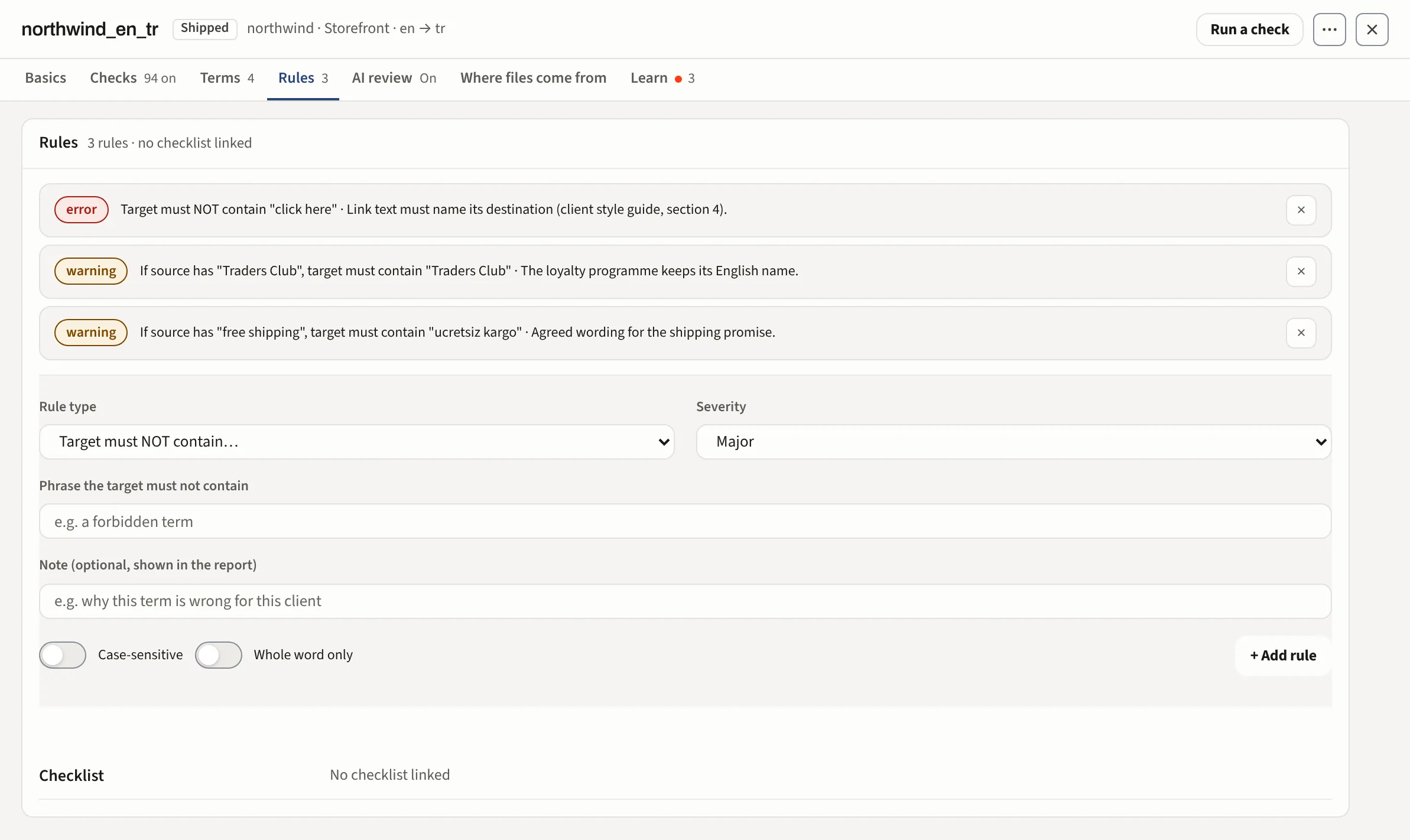
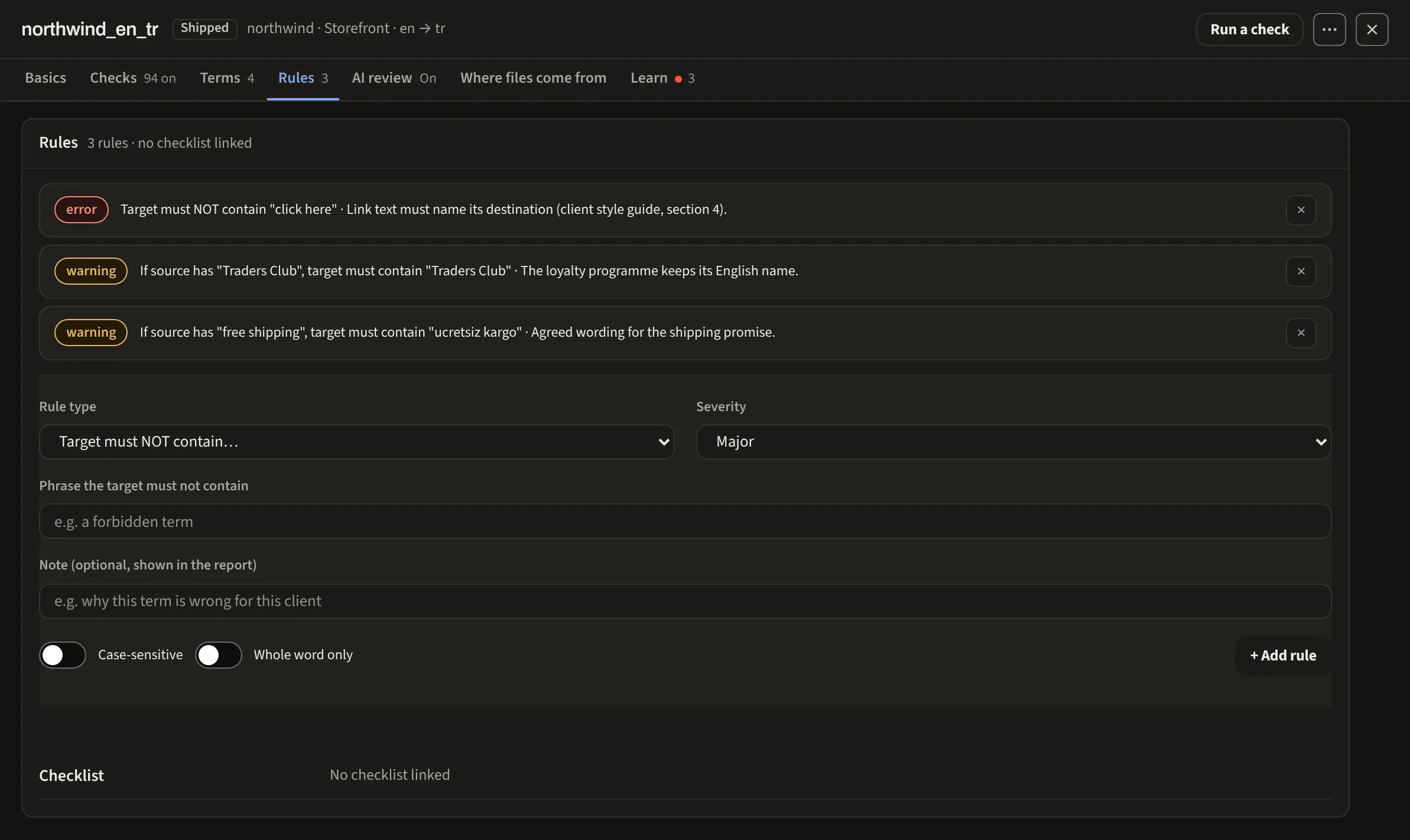
Write a rule
Example: your client has said "never write click here". You want every file checked for it from now on.
- Open Profiles and click the profile for that client.
- Choose Rules, then Add a rule.
- Choose Target must not contain, type
click hereand set the severity to Critical. - Save. It runs on the next check. Nothing to re-upload.
A rule written in the form is one sentence: when the source has X, the target must or must not contain Y. The shapes are must not contain, must contain (a required phrase) and conditional (when the source says X, the target must say Y). Each box takes one phrase per line, and any line counts. Leave the source box empty for a target-only rule; choose is flagged to flag a segment for its source alone. The note you write is what the reviewer reads in the report, where the rule's findings sit together under its name.
Describe one in your own words
Type what the client asked for in any language. The rule is written for you to check and save. It runs like any other rule.
More options
Match is word start by default, so "takvim" also catches "takvimi" and "takvimde" but not "aktakvim"; whole word and anywhere are the other two. Flexible spacing treats a space, a non-breaking space and a hyphen between the words as the same. Except when the source has and Except when the target has list exceptions. For dates, numbers and punctuation, switch on Write a pattern instead: Xbench PowerSearch syntax works as it is. A pattern that cannot work, or could make the check very slow, is named by its line before you can save it.
Try it
Try it under the form takes a source and a target and says whether the rule fires and why, with the words it found marked. Below that it counts the other rules of the profile that fire on the same pair. Nothing is saved there except the last pair, in your browser.
Import a checklist
Import a checklist takes a .xbckl or CSV file, uploaded or picked from Dropbox when the workspace has Dropbox connected. Every check becomes a rule you can edit. Pattern checks come over too, so a check for curly quotes or for a word used twice in one sentence finds the same segments here as in Xbench. Each file is one group of the list, named after it, with one switch and one severity for the whole group. When the file changes in Dropbox the group says so and offers Re-import: the rule texts come from the file again and your switches and severities are kept; the rules you edited here are named before anything changes. Nothing re-imports on its own.
Saving
The switch beside a rule saves at once and can be undone; every other change waits for Save profile. Account and division rules show in the list too: here you can only switch them off for this profile.
What belongs elsewhere
A term with an approved translation belongs in the Glossary, and a brand name in Brands and terms to keep: Glossary and brands to keep. A rule the tool learned from reviewers arrives through Learn.