Reports
Every run is kept. Reports lists them one row per run. A report opens in the page with its findings, filters and decisions.
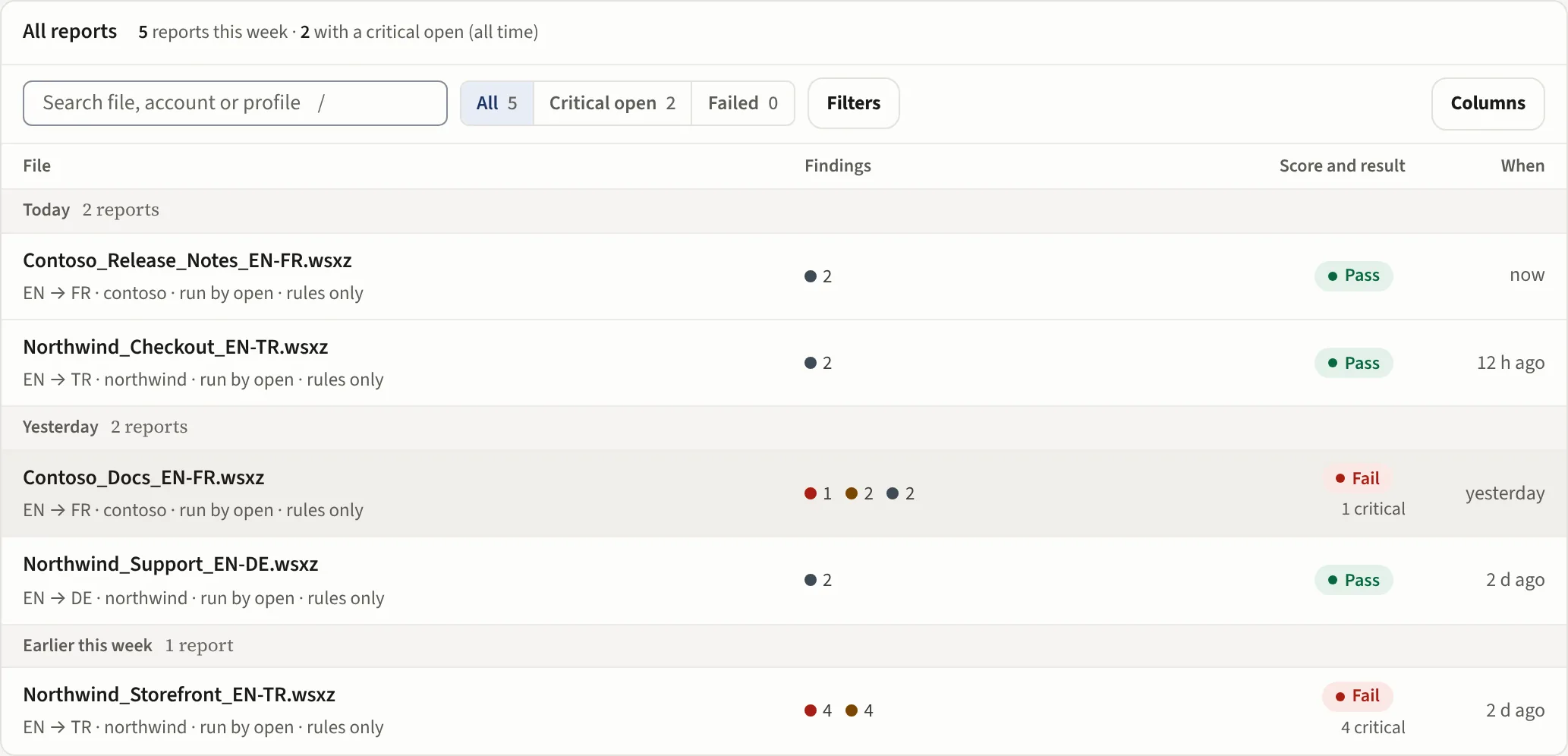
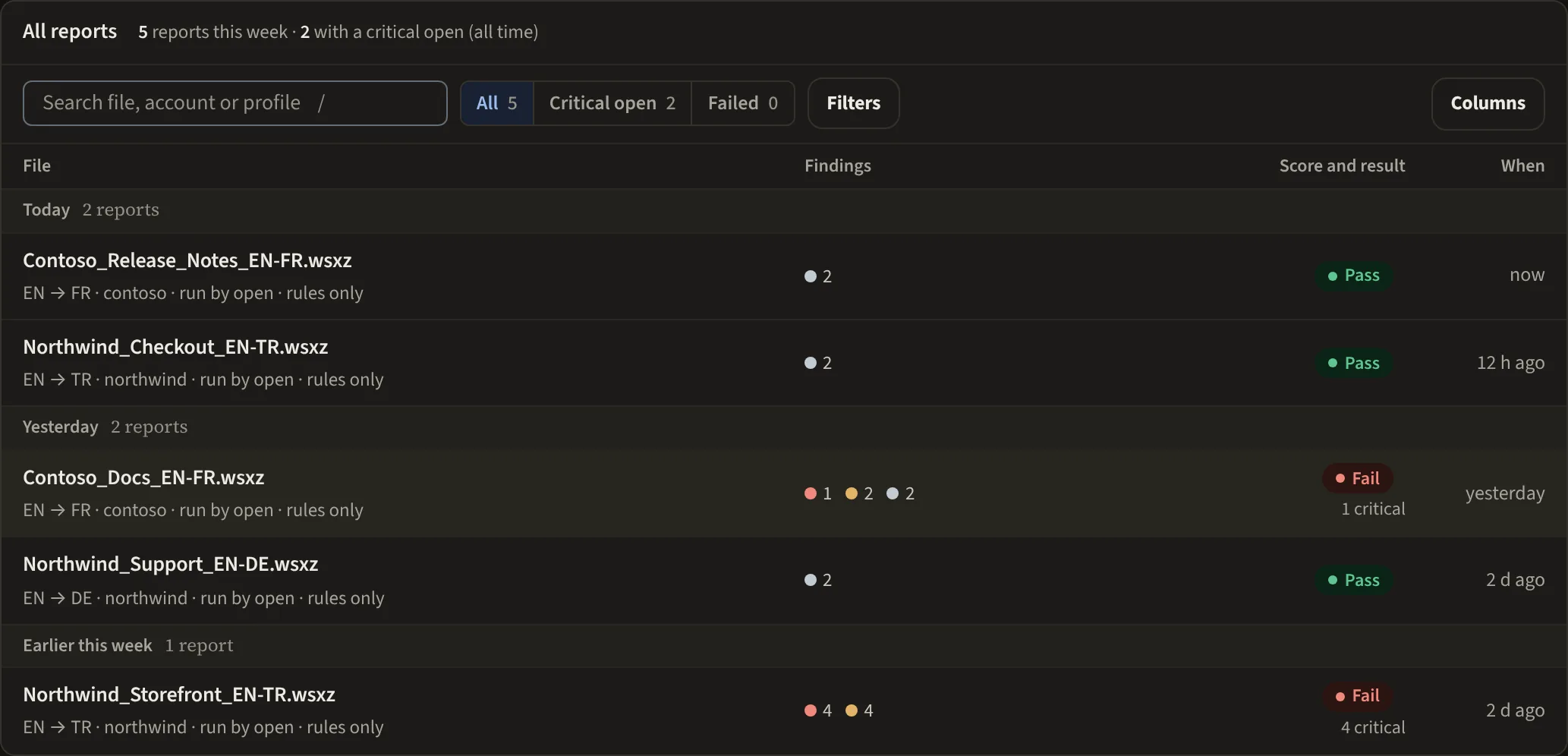
The list
The line above the list says how many reports ran this week (since Monday) and, when there are any, how many have a critical open and, while your workspace signs reports, how many are not signed off.
Each report is one row: the file, under it the language pair, the account and who ran it (a Dropbox run shows its folder; files checked together read as the first name and "+N more"); the findings as dots with their numbers (critical, major, minor and AI); the score with the result under it (Pass, Needs review, Fail, No score or Pass on rules, with "signed off" once a person signs it; Running or Failed, did not finish while a run is not a report); and when it ran, with the exact time when you point at it. Every row carries a tag for what the AI did on that run.
The whole row opens the report; a run that stopped before any check offers Run again. One filter bar sits above the list: the search box, the status chips All, Critical open, Not signed off and Failed (runs that never checked the file), Filters and Columns. Filters opens Result (Pass, Needs review, Fail, No score or Running), Profile, Account, Source, Finding type, Run by, the dates, the sort and Refresh. The active filters show under the bar with the count of matching reports and Clear all; Columns adds the words and the profile to the line under the file name.
Runs started by email, a Dropbox folder, the extension, an assistant or the API land in the same list, tagged with the trigger that started them.
The report view
The header row shows the language pair, the score against its pass mark, the result and what is still open. The tabs under it are filters; Filters holds the search box, the error types, the origin and the view switches. Read the report walks through it.
Source beside target, then every finding on that segment: severity, the check that fired, a plain explanation, the evidence and a suggested fix. A finding the AI checked carries AI agrees or AI disputes with the reason. The Context row under a finding shows the segment before and after it; Context in the View part of Filters switches it, and the app keeps your choice on your account.
Wide or Side chooses the layout, and the density and text size are yours too. A finding offers Also on this segment when another finding sits on the same segment.
What you can do with a report
- Decide on each finding: Ignore, Fixed, teach the profile.
- Apply fixes: write the confirmed fixes into a copy of the file, never the original.
- Compare two versions of a file to see what a reviewer changed.
- Sign off: record who passed the file and when.
- Share and export: download it as HTML, Excel or CSV. Or mint a read-only link.
Analytics
Analytics counts your reports and the findings in them; it counts findings, not people. One filter bar at the top governs every figure on the page: This month (since the first of the month), 30 days, 90 days or All, and an account and a profile. Clear filters goes back to this month.
The tiles: QA runs, Critical caught (critical findings, and in how many reports), Clean rate (the share of runs with no critical finding; major and minor findings are allowed), Pass rate (the share of runs whose result is Pass: no open critical and a score at the pass mark, or no score and no major finding, so it is stricter than the clean rate), findings with the average a report, and the AI words the period used.
Results splits the runs into Pass, Review and Fail; Run errors are runs that stopped before any check, so the file was never checked and there is no report and no result. By module shows What's Wrong for the filters and the LQA scorecards and Eval bake-offs the workspace has; Open takes you to that module's own Analytics tab, which has its own date range and filters. Findings by category, By account and category, Clean rate by account or by profile and All activity follow the filters.
AI use by model lists the calls, the speed and the errors per model, and AI words a day the words the AI read, for the whole workspace in the period: the account and profile filters do not split them. Costs and prices are the operator's.
Deleting a report
A workspace admin can remove one report for good: open it and use Delete at the right of the decision bar; the confirmation names the file. The report, its findings, its decisions and its signature go for everyone in the workspace. The words the run used stay counted against the plan, and a copy the run wrote back beside the file in Dropbox, Crowdin or Smartling stays where it was written, in your own storage. The deleted report lingers in our backups for up to 14 days until they rotate. This cannot be undone; Archive older than 30 days on Home is the choice that hides and keeps.