Set up a client
A profile is everything the tool knows about one client and one language pair. You do not have to fill it all in; the first two lists already help.
Read the transcript
- Set up a client. One profile per client and language pair.
- 1. Press New profile.
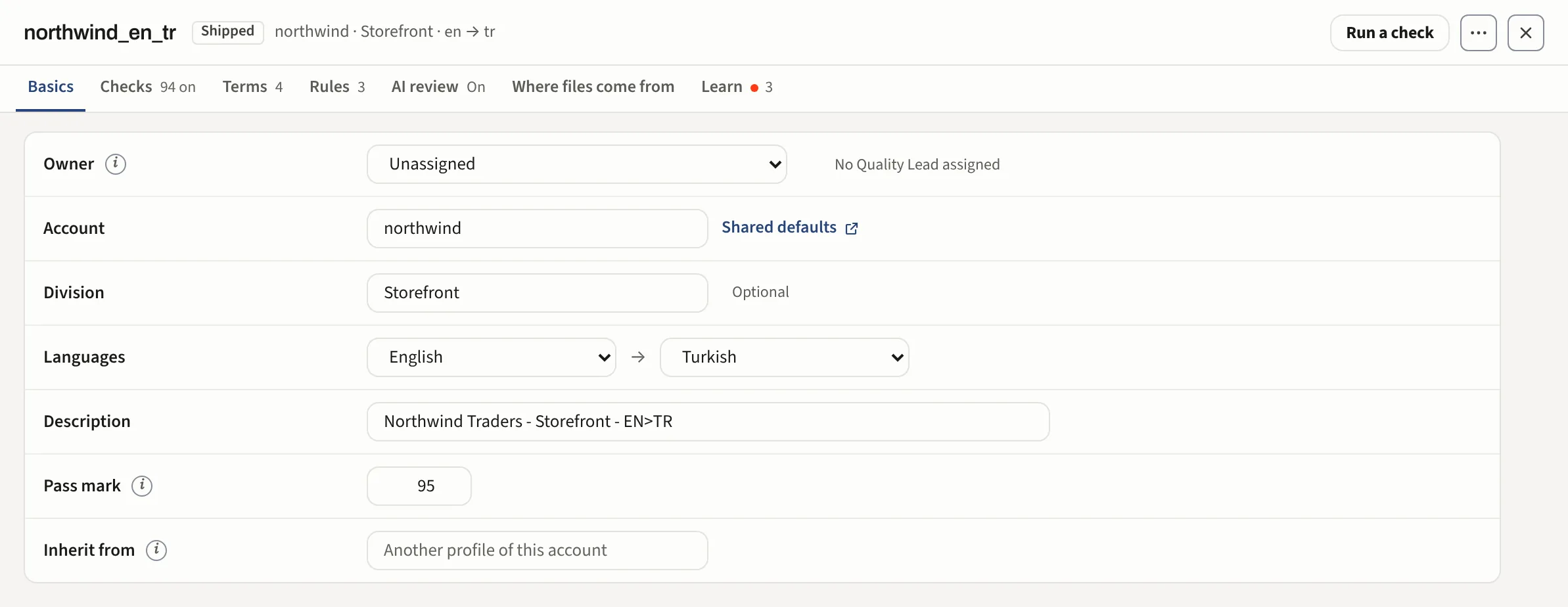
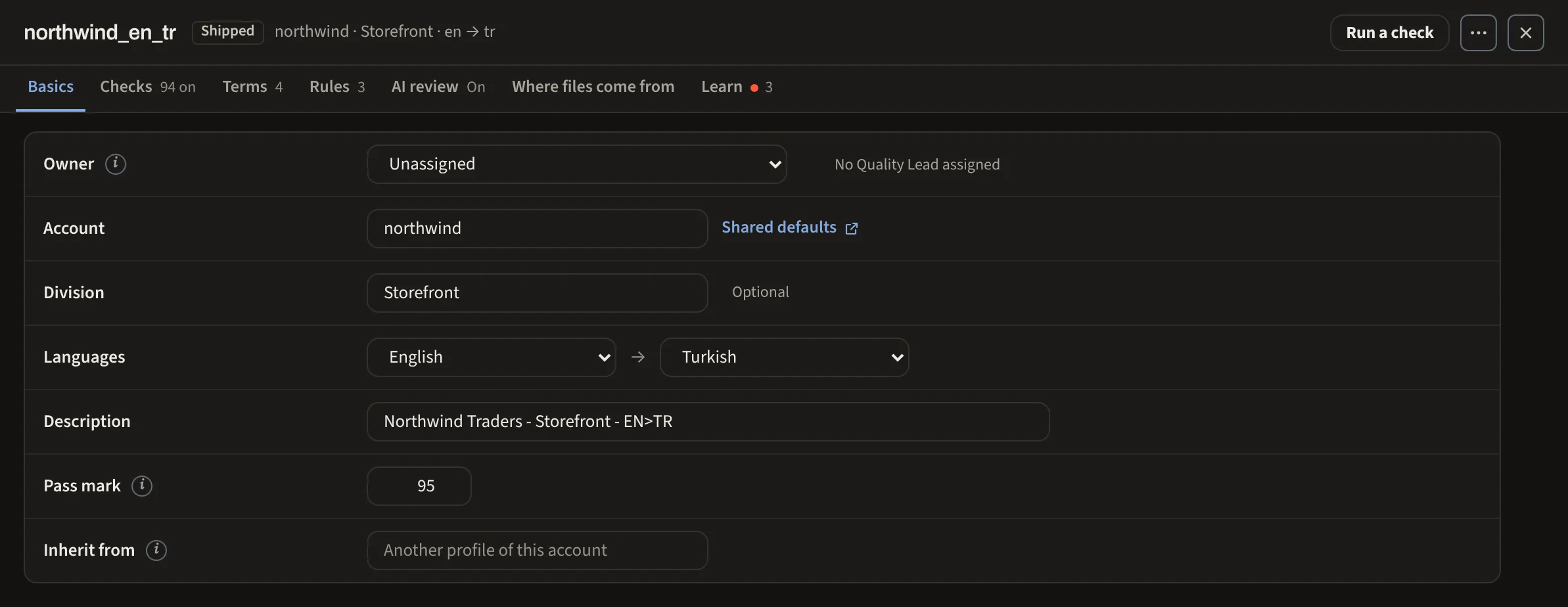
- 2. Fill in the name, account and language pair. They route the client’s files to this profile.
- 3. Press Create profile.
- 4. Under Terms, add the brands and terms to keep. Words that must stay as written.
- 5. Paste the glossary and press Load pasted terms. Or upload the client’s file.
- 6. Press Save profile.
- Next: Check a file with this profile.
- Profiles, then New profile. Give it the client's name and the language pair.
- Routing: say which files belong to it, usually a word in the filename or the client's account. This is how Auto-detect finds it later.
- Brands and terms to keep (also called do-not-translate or DNT): the words that must stay in English. Product names, brand names, UI labels.
- Glossary: the words that must be translated one specific way.
- Save. Come back for severities and style notes when you know what this client argues about.
A client's own term base
A client's term base goes in the same section as a term list: give it a name, pick the language column and the scope. It keeps that identity on every finding. A two-column file (term, expected translation) loads as a term list too: rows with a translation become glossary entries, rows without stay do-not-translate. Glossary and brands to keep has the detail.
From a folder, in one go
If the client sent a folder, the style guide, glossary, checklist and a few past files, Build from a folder reads all of it and proposes the profile for you to approve. Build a profile from a folder.
An owner for the profile
You can name an owner for a profile: the person responsible for it. They can edit that one profile, and they can find it again with the My profiles switch.
Where it applies
The same profile is honoured by the app, the Dropbox folders, QA by email, the extension, the MCP server and the API alike. Profiles are grouped by account, and org, account and division tiers cascade into them, so a term taught once applies to everything below it. Profiles explains the seven sections.