Check a spreadsheet
A client's Excel request usually has one source column and many language columns. It has to be told which two to compare.
Read the transcript
- Check a spreadsheet. A bilingual Excel or CSV file.
- 1. Drop the sheet on Run a check. Here an Excel bilingual of 5 segments.
- 2. Press Run the check. Confirm the columns opens first.
- 3. Check the source and target columns. The first rows show what each column holds.
- 4. Pick the ID and note columns. Optional. A note goes with its segment to the report.
- 5. Press Use these columns. The sheet runs like any bilingual file.
- Next: Read the report.
- Drop the
.xlsxon Run a check as usual. - Confirm the columns opens. It guesses, and you correct it.
- Set Source to the English column and Target to the language you are reviewing.
- If the workbook has several sheets, pick the sheet too, then Run.
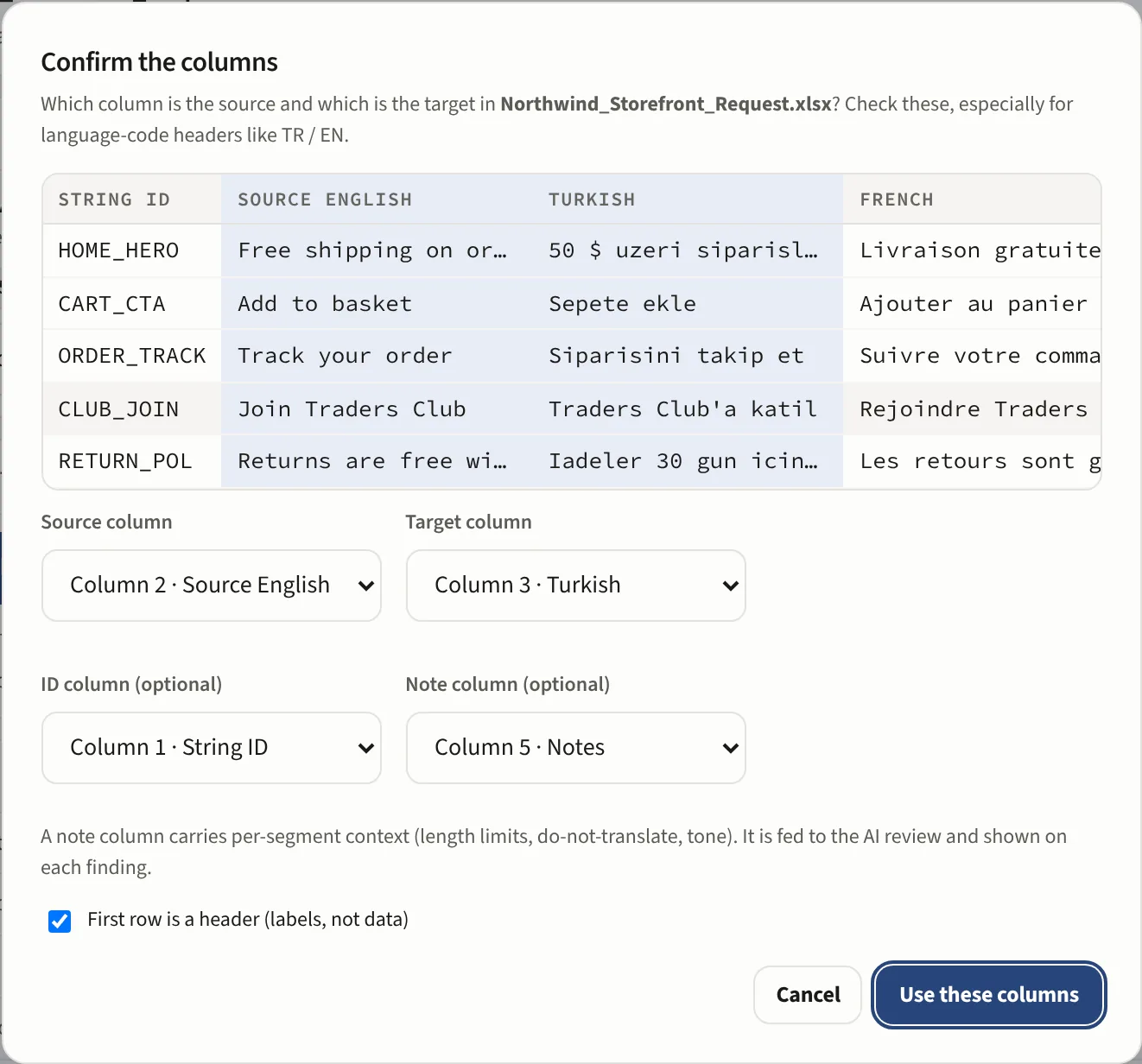
If the wrong column is chosen, the check compares the wrong two languages and the result is meaningless. The dialog is there so that choice is yours, not a guess.
The optional columns
An ID column gives each row a stable segment id, so a finding names the row the way your tool does. A Note column is carried into the report as the segment's note.
When the sheet is rejected
"No source/target column" means the header row could not be identified: usually a title or banner row above it, or column labels the tool does not recognise. Map the columns by hand in the dialog, which overrides detection entirely.
When the rows look like a QA report rather than a bilingual file, the dialog says so before you run and lets you continue with the columns you chose.