Read the report
A report can be long. These three moves are all you need.
Read the transcript
- Read the report. In four steps.
- 1. Read the result at the top. Fail means a critical finding is still open.
- 2. Press Critical. The list keeps only the findings that fail the file.
- 3. Open a type and press a finding. The segment, the problem marked and what to do.
- 4. Decide: Mark fixed or Ignore. Mark fixed when you corrected it. Ignore a false alarm.
- Filters narrows the list. By error type, scope and status.
- Next: Fix it and download the corrected copy.
1. The result at the top is the headline
- PASS: no critical and no warning was found.
- REVIEW: warnings only. Look at them before you send the file.
- FAILED: at least one critical problem was found. That is not the same as a bad translation: a good file with two broken tags reads FAILED and a quality score in the nineties at once.
- INCONCLUSIVE: too little of the file was checked to call it, usually because 100% matches or locked segments were skipped, so nothing found means nothing.
The result comes from the rules: a critical finding fails the file whatever the score. The score sits beside the result, not inside it.


2. Click the Critical counter
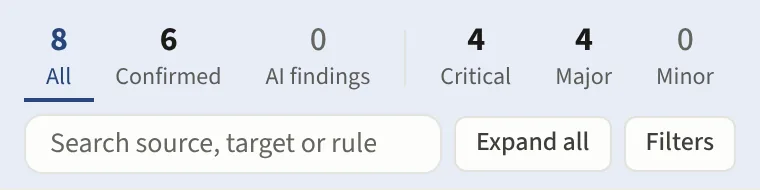
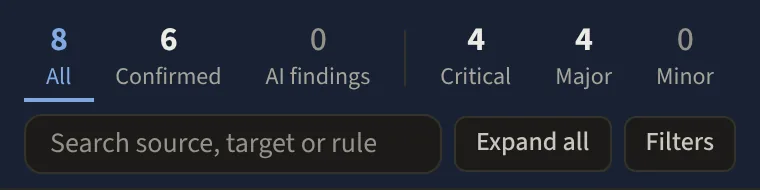
Every counter along the top is also a filter. Click Critical and the list narrows to the findings you must fix. The tabs are All, Confirmed, AI findings, Critical, Major and Minor, each with its count; the keys 1 to 6 pick them. Confirmed holds what the AI confirmed and what an exact rule check found. AI findings holds what the AI review raised on its own, where no rule fired.
Then Filters holds a free text search across source, target and message, the error types, the origin (rule, AI, spelling) and switches to hide 100% matches, context matches, locked segments and anything already resolved.
3. Read a finding, then fix it in your tool or in the report
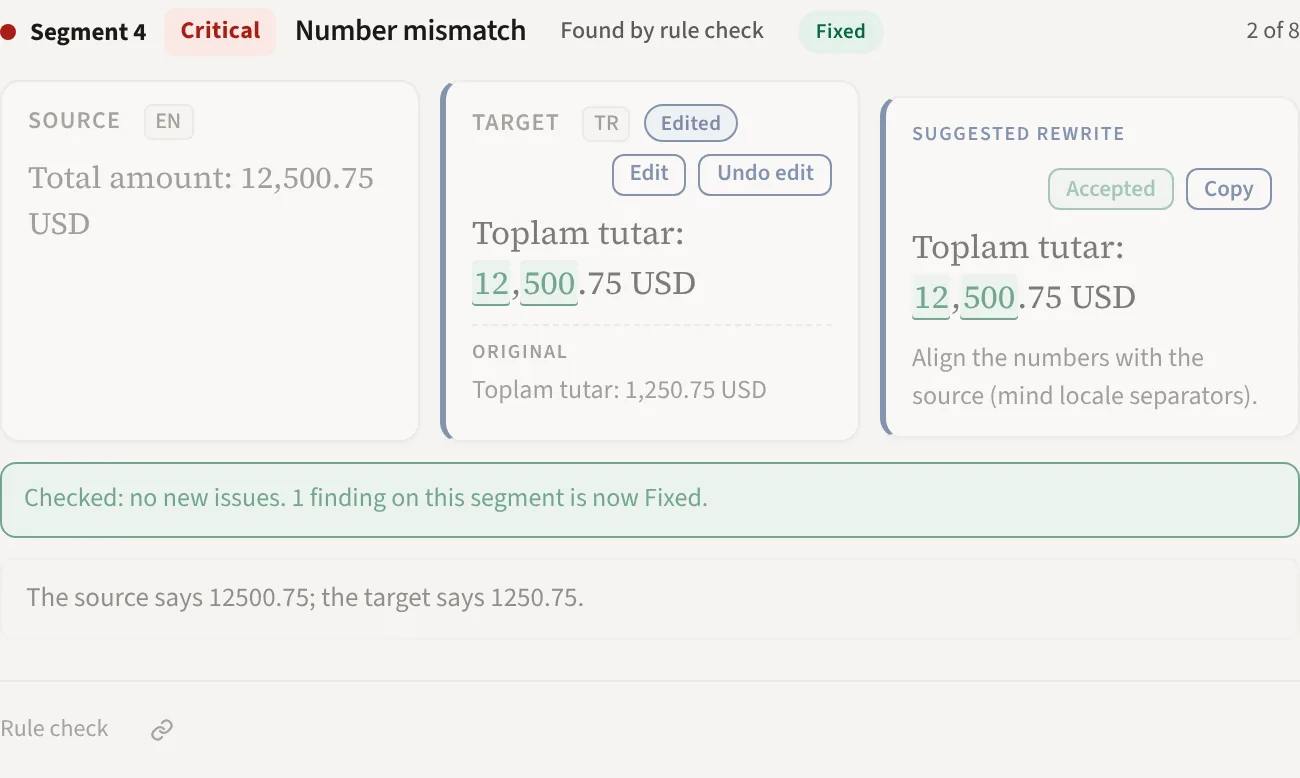
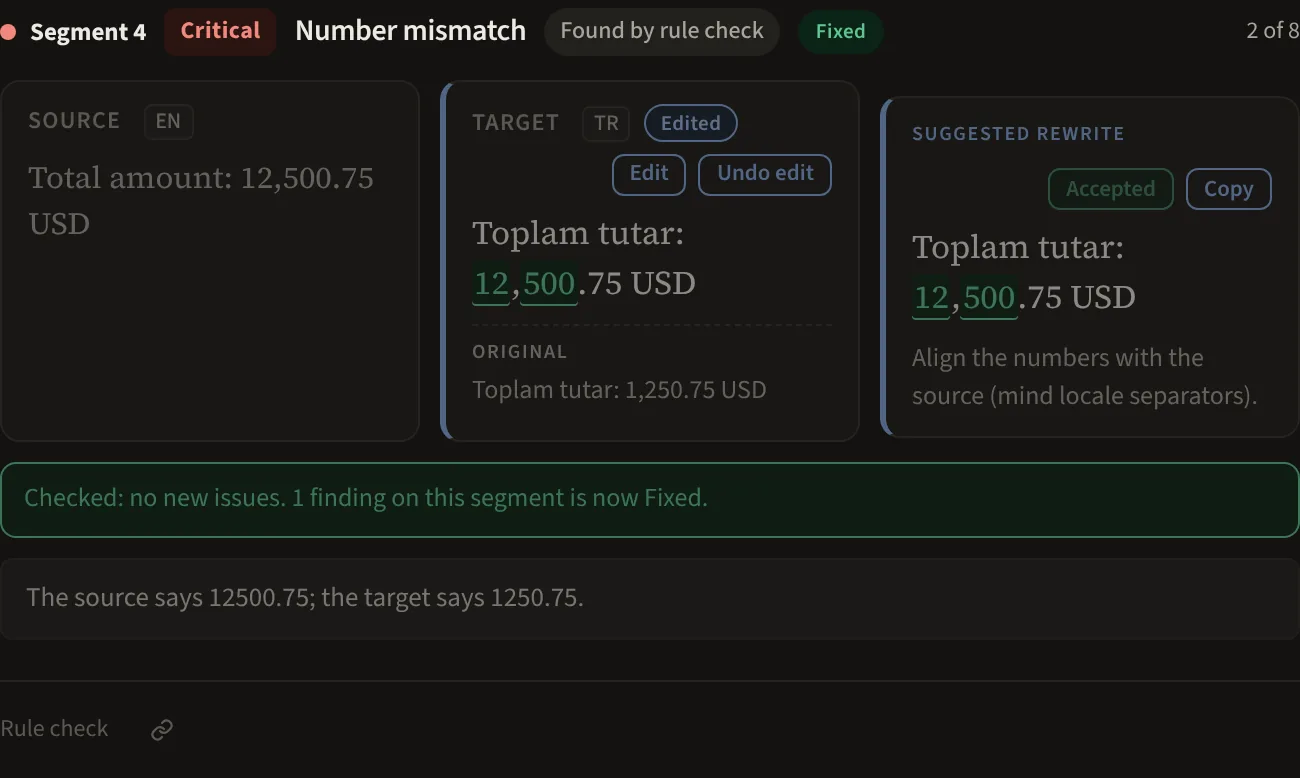
Each finding shows the segment, source beside target with the problem marked at the place the fix is written (when a finding names no exact place, the words are marked wherever they stand), what is wrong in plain words, the evidence (the actual numbers or tags that differ) and a suggested fix. Fix it in your own tool, or on the Solo plan and up fix it here: press Accept fix, or edit the target in place, then download a corrected copy from the Download menu. Your original file is never changed.
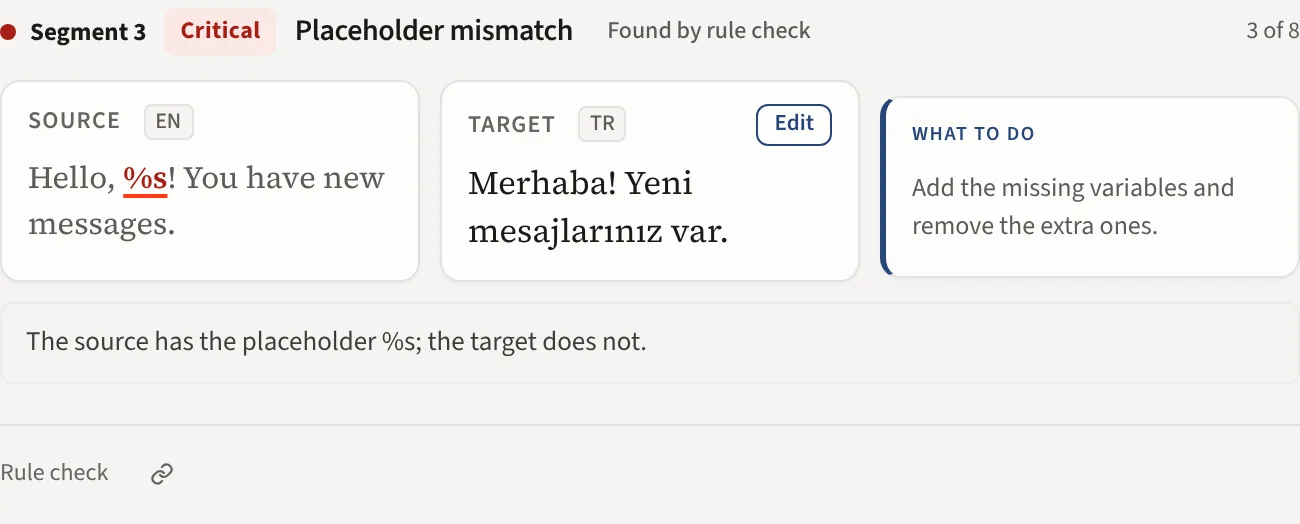
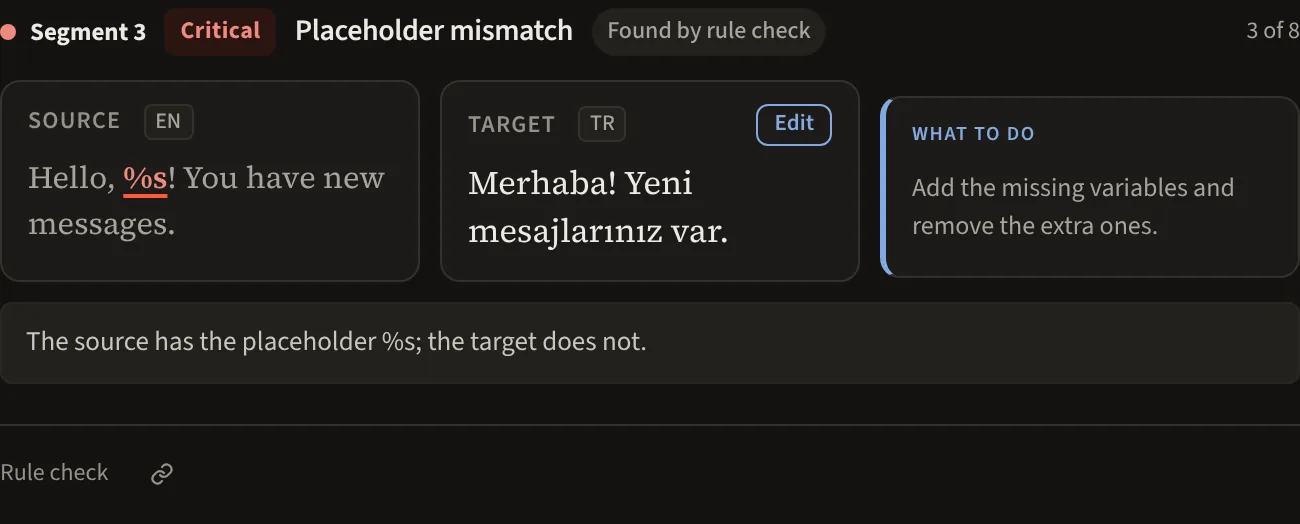
Under each finding a shut Context row holds the translation of the segment before and after it, the same context the AI saw. A finding the AI gave an opinion on carries AI agrees or AI disputes with the AI's reason; when the AI could not tell there is no label. A finding that reads Found by rule check is a fact and carries no opinion.
If you review in WorldServer or Phrase with the Chrome extension, press Insert on a finding and the fix goes into the segment you have open, as if you typed it. You still save it in the editor and the report marks the segment Inserted. In XTM Cloud and Smartling, where Insert is still in testing, you copy the fix.
Disagree with a finding
Every tool gets some things wrong. On the finding press Ignore (a false positive) or Fixed (it was right and you corrected it). Both are saved on that report with your name, and Hide resolved takes them out of the list. A new run of the same file keeps the marks, shown as carried over. To stop a false positive coming back for a client, teach the profile: Decisions on a finding.
Then
The report is kept under Reports, one row per run with its result, its score and when it ran. Reports covers downloads, share links, editing, applying fixes and signing off.