Compare two versions
Compare sits under What's Wrong in the menu, after Analytics. Upload an earlier and an edited version of the same file to see exactly which target segments were edited, added or removed, with a word-level before-and-after of each.
Read the transcript
- Compare two versions. What a reviewer changed.
- 1. Drop the earlier and the edited version. Of the same file.
- 2. Press Build change report.
- 3. Read what changed. Each edited target, word by word, and the edit rate.
- Next: Check the edited file. Compare is not a QA check.
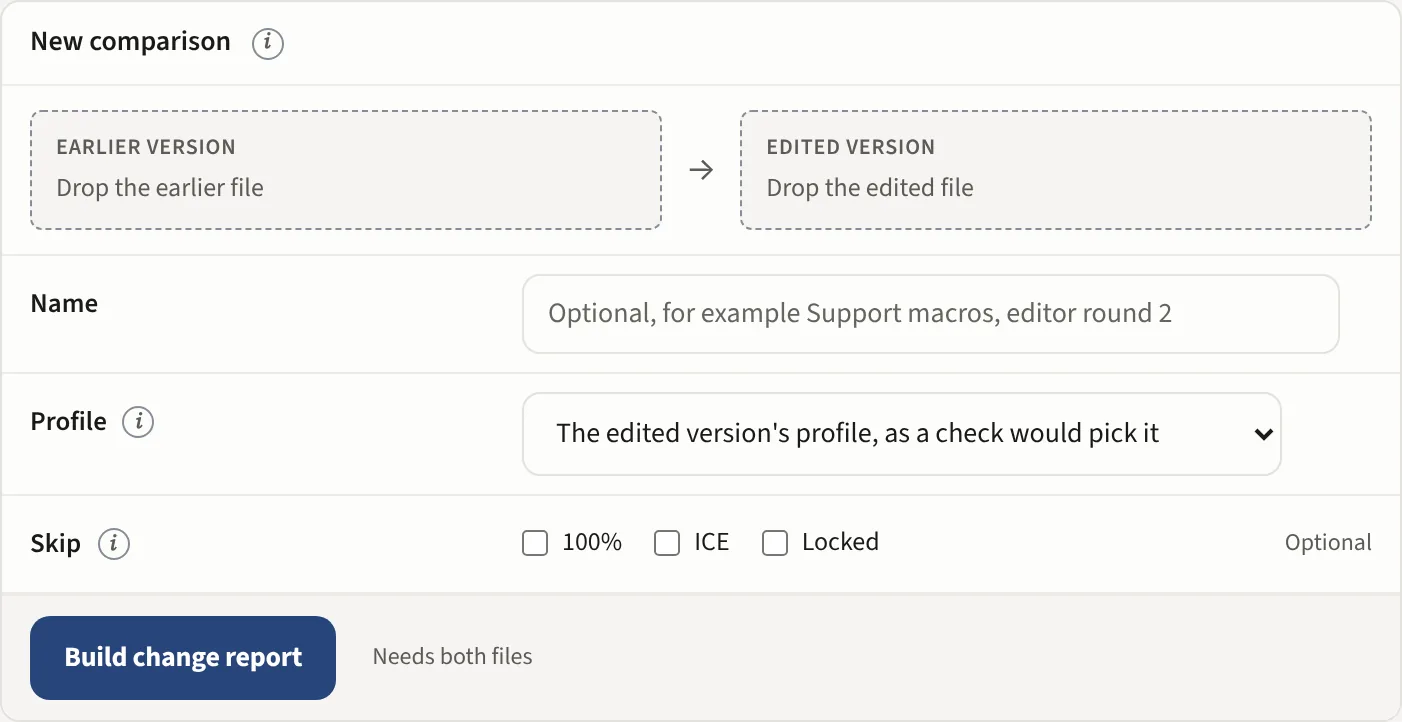
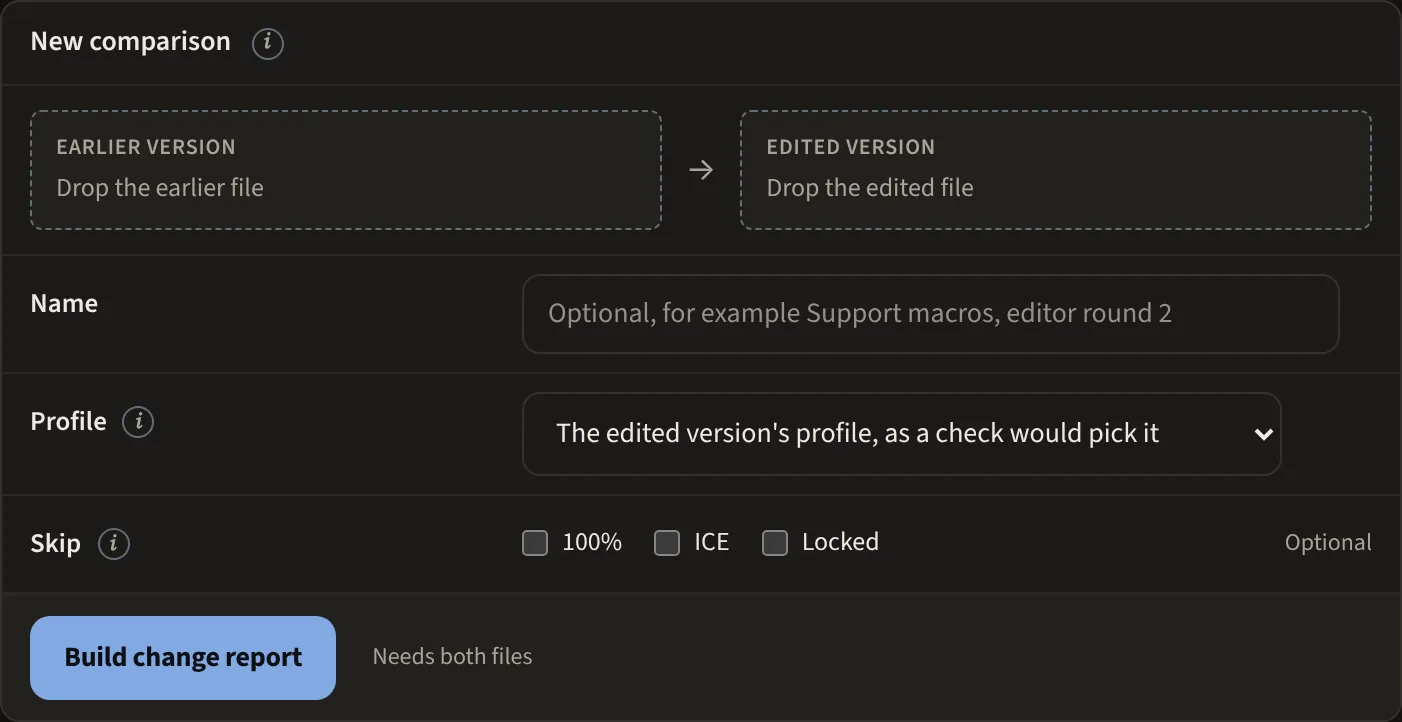
Filter by change type, add a note per segment, send the changes into an LQA scorecard or export to Excel.
A new comparison
Drop the earlier version on the left slot and the edited version on the right one, or click a slot to pick a file. Segments are matched by id, with a source-hash fallback if they were renumbered, and each target is diffed. The name is optional. Profile is the profile an LQA scorecard made from the comparison carries; left as it is, it is the profile a check of the edited version would pick. Skip leaves the report to the editable content, with the same scope options as a QA run: 100% (exact matches), ICE (in-context exact matches, also called 101% or context matches) and Locked. Each one is separate. Your earlier comparisons are under History beside the form.
The change report
The header names the files, the language pair, the profile and when it ran, with the alignment confidence; Create LQA scorecard, CSV and Excel sit beside it. Locked, 100% and context segments are shown but flagged as edited frozen, since they should not have changed. The CSV and the Excel file open with a summary: segments compared and changed, the touched share and the edit rate (how much of the changed segments' words were edited). The Edit rate tile beside Touched shows the same figure.
Not a QA check
Compare shows what a reviewer or a post-edit changed between two versions. To score quality, run either version in What's Wrong or send it to LQA.
Compare is not a QA check: it reports what a reviewer changed, not what is wrong. It is also available through the API (POST /qa-adapter/v1/compare) and a compare.completed webhook tells your system when a change report is ready. The REST API.