Decisions on a finding
Every tool gets some things wrong. Each finding has three decisions, in the bar under the pane.
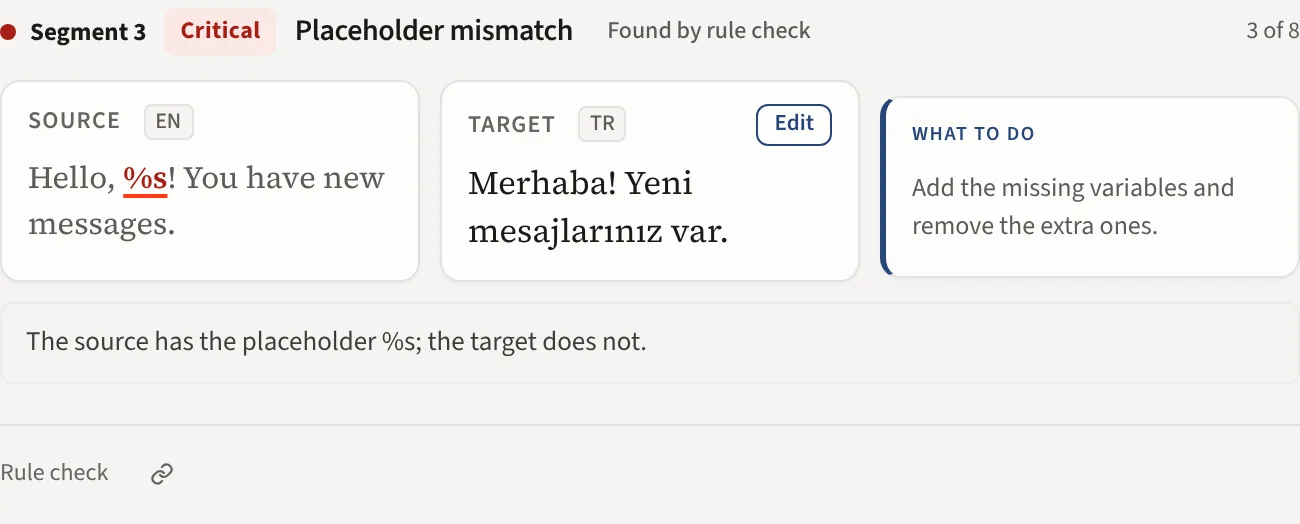
Ignore
The finding is a false positive. It is marked ignored in this report with your name and stays in the list until you switch on Hide resolved. Ignore marks the finding in this report; it does not change the profile.
Two things follow from an Ignore on their own. A new run of the same file starts with last time's ignores already in place, shown as carried over. And if two reviewers ignore the same thing, or it is ignored in two files, Learn suggests stopping it for this client. A PM or linguist approves.
Fixed
The finding was right and you have corrected it elsewhere, in your own tool. Mark fixed keeps your record of what was handled; it changes no text. Fixed takes the finding out of the open count, which is what a sign off looks at.
To change the text in the report itself, use Edit or Accept fix below.
Reset
Undoes either mark. On a finding an edit closed, Reset asks whether to undo the edit too.
Edit a segment in the report
On the Solo plan and up you can change a segment's target in the pane. The change goes into a corrected copy of your file that you download; your original file is never changed.
- Accept fix (a) on the suggested rewrite puts that rewrite in as it is. An AI suggestion marked check before use opens in the editor first, so you read it before you save.
- Edit (m), or a click on the target, opens the target in place. Inline tags show as chips. You can change the words between them, and move a chip with its words: drag it, or cut it and paste it somewhere else in the target. Every tag must stay, once each. Ctrl Enter saves and Esc cancels.
- Undo edit (u) puts the segment back as it was at the check.
You edit a segment, not a finding: when a segment has several findings, one edit covers them all. When you save, the segment is checked again with your profile's rules. The pane says Checked: no new issues, or lists what the new text still has. Every finding on the segment that the new text no longer raises is marked Fixed. The row shows Edited and the report header counts the segments you edited.
The report lists only segments with findings, so this is a review editor, not a full one. A segment stays read only when it is locked in your CAT tool, when its text is longer than the report keeps, when the report is signed off or when you read it on a phone. A change that drops, repeats or adds a tag, or closes a pair before it opens, is refused with a short note; make that one in your CAT tool. If someone else saved the same segment first, the pane shows their text and asks you to edit again.
On Free and during a trial the buttons are visible but locked. Copy still works, so you can paste a fix in your CAT tool.
Download the corrected file
Open Download in the report header. For an XLIFF file (SDLXLIFF, MQXLIFF and the rest of the family), an Excel workbook (.xlsx or .xlsm), a CSV or TSV file or a package of them (.wsxz, .sdlppx, .sdlrpx, .mqxlz, .xlz or .zip) choose Corrected file: it first says how many segments will be written and which are skipped and why, for example a segment that changed in the file since the check. In an XLIFF file the written segments are marked for review, so they do not reach your translation memory unconfirmed. For a single SDLXLIFF file the menu also offers Corrected file with tracked changes (Trados): the same edits as revisions a reviewer accepts or rejects in Trados Studio, each one under the name of the person who made the edit. It is new, so check the file in Trados Studio before you send it to a client. For other formats, such as old .xls workbooks, choose Edits (Excel): one row per edited segment with the old and the new target. The edits list is there for every format.
In an Excel workbook or a CSV or TSV file only the target cell of each edited row changes. Styles, formulas, comments, data validation, other sheets and macros stay exactly as they are. So do the encoding, the delimiter and the line ends of a CSV or TSV file. A cell that holds a formula, a number or a date, a cell under a merged cell and a change across text with different formatting are refused when you save, with a short note; change those in the spreadsheet. A spreadsheet has no status column, so nothing in the file marks the edited rows: the edits list says which they are.
In a package the preview also says how many segments go into each file inside it. Only those files change; every other file of the package stays exactly as it is. The corrected copy downloads under the package's own name with .corrected before the extension. Trados recalculates the statistics of a package when you open it.
When the file came from a watched Dropbox folder, QA by email or the Smartling connection, the menu can also send the corrected copy back there: see Send the corrected copy back.
The report keeps a copy of your original file for a few days after the first edit. Once it has expired, the menu asks you to drop the same file again. A different file is refused.
Teach the profile
To stop a finding coming back for a client, teach the profile rather than ignoring it report after report.
- On a segment kept identical to the source, press Keep as brand or Fine as is. Each sends a suggestion to the profile's Learn list, which someone approves. The report answers "Sent to Learn for approval".
- For any other check, change the profile itself: a custom rule, a glossary or term list entry, or the check's severity under Checks, Severities.
Neither Ignore nor Fixed changes a profile by itself, and approving a suggestion changes runs from that point on, never a past report.
Work in Excel
If your team still marks findings in a spreadsheet, do it in the report's own workbook.
- Open Download in the report header and choose Excel. The Findings sheet has one row per finding: the segment, its severity, the check, what is wrong, source and target with their tags as
{1}...{/1}, the suggestion, a Decision and a Note. The About sheet has the file, the profile, the score and the counts. - Set Decision to Ignore or Fixed from the dropdown, or back to Open. Add a note if you like. Leave the Finding ID column as it is: the import matches each row by it.
- Save the file. On the report page open Download and choose Import decisions, then pick the file.
The report answers with how many decisions were applied, how many rows changed nothing and how many were skipped. Each decision is saved as if you had pressed the button in the pane, with your name, so carry over and Learn see it the same way. A row is skipped when its Decision is none of Open, Ignore and Fixed. A row is also skipped when its Finding ID is not in this report. A signed report takes no import until it is reopened.
The import also reads the older wide workbook (Excel, full detail) when you add a Decision column to it.
From an assistant or the API
An assistant connected over the MCP server with the Review permission, or a system calling the API, can mark findings Ignored, Fixed or Open again with a reason. The report shows the mark as made that way, with the reason. Neither can sign a report off.